Chromebook vs Budget Windows Laptop: A Side-by-Side Month
A month with a Chromebook and a budget Windows laptop side by side: where each one wins, what to check before you buy, and three picks worth shortlisting.

Photo: Aleksi Tappura a · CC0 · source
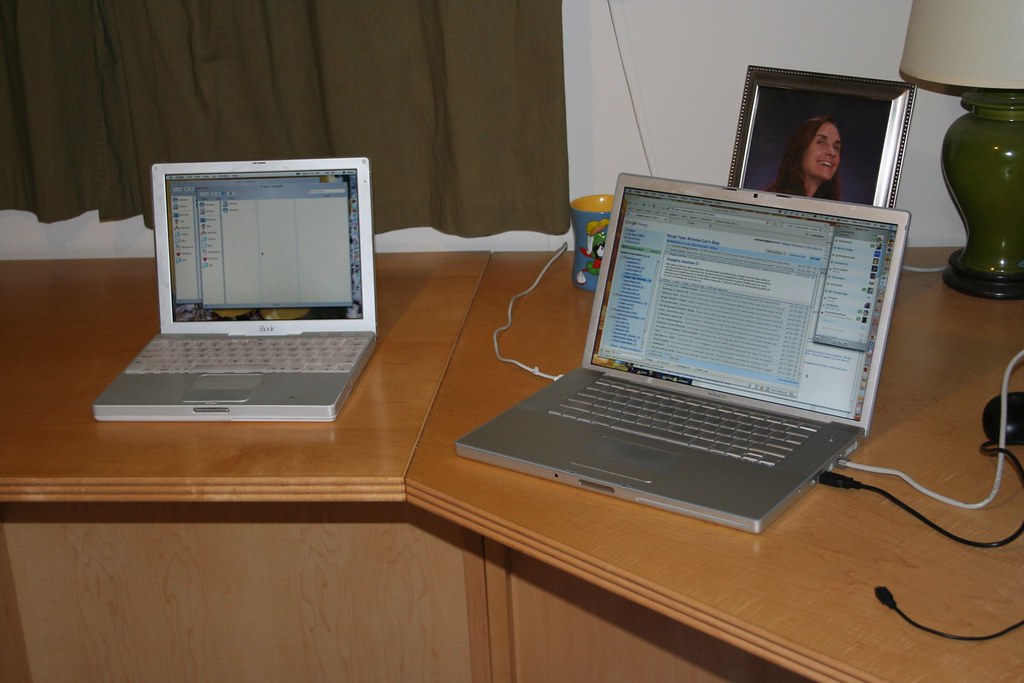
It’s 8:15 on a Sunday morning, and there are two laptops open on your kitchen table, one on each side of the French press. On the left sits a Chromebook; on the right, a budget Windows laptop that cost about the same. For the past month they’ve split the household workload — recipes and grocery lists, a kid’s school portal, your banking tab, the half-written email you keep meaning to finish.
You ended up with both because choosing from a spec sheet felt impossible. The spec sheets were right to confuse you. On paper the two machines are near-identical: similar screens, similar weight, similar price. In daily use, they are nothing alike.
A month in, neither one has won. They’ve divided the work along a line you couldn’t see until you lived with it, and that line — browser stuff versus everything else — is the single most useful thing to figure out before you spend money. Here’s what the month settles, and how to tell which side of the table your tasks would land on.
What actually matters before you buy
- Write down your five most common tasks before you open a single product page. If four or five happen in a browser — email, docs, streaming, shopping, banking — a Chromebook covers you completely. If one task needs a specific Windows program, whether that’s a school portal, desktop accounting software, or your employer’s VPN client, no Chromebook will substitute, and everything else in this decision is commentary.
- Set 8GB of RAM as the floor on either platform. Google’s Chromebook Plus program makes it a baseline requirement, and you feel the difference every time the machine recovers from a background update. On the Windows side, 4GB configurations still show up at tempting prices; in 2026 they’re a false economy you’ll regret by the second browser tab.
- Read the storage line carefully, because it means different things. Chromebooks run cloud-first, so 64–128GB of eMMC storage is normal and perfectly livable. A Windows laptop with eMMC storage, on the other hand, feels slow in a way no setting fixes — on that side of the table, insist on a proper SSD.
- Judge the screen and keyboard before the internals. A dim, low-resolution panel or a mushy keyboard poisons every day of ownership, while average internals only matter when something’s slow. Aim for a 1080p display as the minimum, and if a store display is available, type on the keyboard before you buy.
- Check the update runway, because both platforms have one. Every Chromebook model has an auto-update expiration date that Google publishes per model — some now stretch to ten years — and it takes two minutes to look up. On Windows, make sure the machine ships with Windows 11, since Windows 10 support ended in October 2025.
- Weigh your actual life, not the laptop. A 15.6-inch budget machine is a kitchen-table laptop; if it never leaves the house, its weight is irrelevant. If it rides in a backpack next to your lunch, four pounds starts mattering by the second block.
How to get more out of what you already own
If you’re already living with a Chromebook, three settings pay off immediately. Turn on offline access for Gmail and Docs before you need it, not during the flight when the setup screen can’t reach the internet. Enable the Linux development environment if you ever need desktop-grade software like LibreOffice; it’s a checkbox now, not a project. And be honest about tabs — ChromeOS stays quick with ten tabs open and gets creatively slow with forty, so lean on bookmarks instead of a tab graveyard.
On the Windows machine, fifteen minutes of maintenance does more than any registry tweak. Trim the startup list in Task Manager, turn on Storage Sense so temp files clean themselves up, and uninstall the trial antivirus and vendor updaters that shipped pre-installed. If the model has an access panel, a RAM stick or SSD swap later is the cheapest speed you will ever buy — just check the warranty situation before opening anything.
If you own both, assign roles instead of arguing with either one. The Chromebook becomes the shared machine: kitchen, guests, low-stakes browsing, the laptop you hand to a kid without anxiety. The Windows laptop becomes the one-app machine and the file hub. And if you’re choosing between them for good, the deciding factor is not benchmarks — it’s whether that fifth task on your list exists. If you’re new around here, /about/ explains how we approach budget tech, and more laptop coverage lives in /category/laptops/.
The picks, briefly
The three machines below map to the realistic choices on both sides of the table: a big-screen Chromebook, a straightforward budget Windows laptop, and a 2-in-1 for kitchens that double as living rooms.
Acer Chromebook Plus 515
The straightforward ChromeOS pick when you want a big screen and no drama.
Best for: Browser-first households that share one laptop at the kitchen table.
- 15.6-inch 1080p display at a budget price, based on published specifications
- The Chromebook Plus tier guarantees at least 8GB of RAM and a modern Core i3-class chip, per Google's program requirements
- Around four pounds — fine at home, noticeable in a backpack
- 128GB of local storage is typical, so plan to live in the cloud
ASUS Vivobook 15 (F1502)
The safe Windows side of the table: full app compatibility for similar money.
Best for: Anyone whose task list includes one program that only runs on Windows.
- Runs the full Windows catalog, including school portals and small-business desktop software
- Many configurations leave RAM and storage accessible for cheap upgrades later
- Base configs sometimes pair 8GB of RAM with a basic 60Hz panel — check the exact SKU
- Battery life is rated modestly; plan on the charger for long days
Lenovo IdeaPad Flex 5i Chromebook
The 2-in-1 escape hatch if the kitchen table doubles as the couch.
Best for: Readers, streamers and households that want touch without paying tablet money.
- 360-degree hinge and touch screen make recipes and reading easier
- Compact 14-inch 1080p body that travels better than a 15.6-inch
- Smaller screen than the 515 for the same basic job
- Like most Chromebooks, local storage is modest
FAQ
Can a Chromebook fully replace a budget Windows laptop?
If your work lives in a browser, yes — often it feels better, because ChromeOS stays quick on modest hardware. It fails the moment you need a Windows-only desktop application.
Do Chromebooks work without Wi-Fi?
Better than their reputation suggests. Gmail, Docs and Sheets have offline modes you enable in advance, streaming apps allow downloads, and Android apps run offline too. The setup itself needs a connection, so do it before you travel.
Is 4GB of RAM enough in 2026?
For anything beyond one tab and a document, no. 8GB is the practical floor on both platforms, and Chromebook Plus models guarantee it. The price difference is usually small next to the frustration.